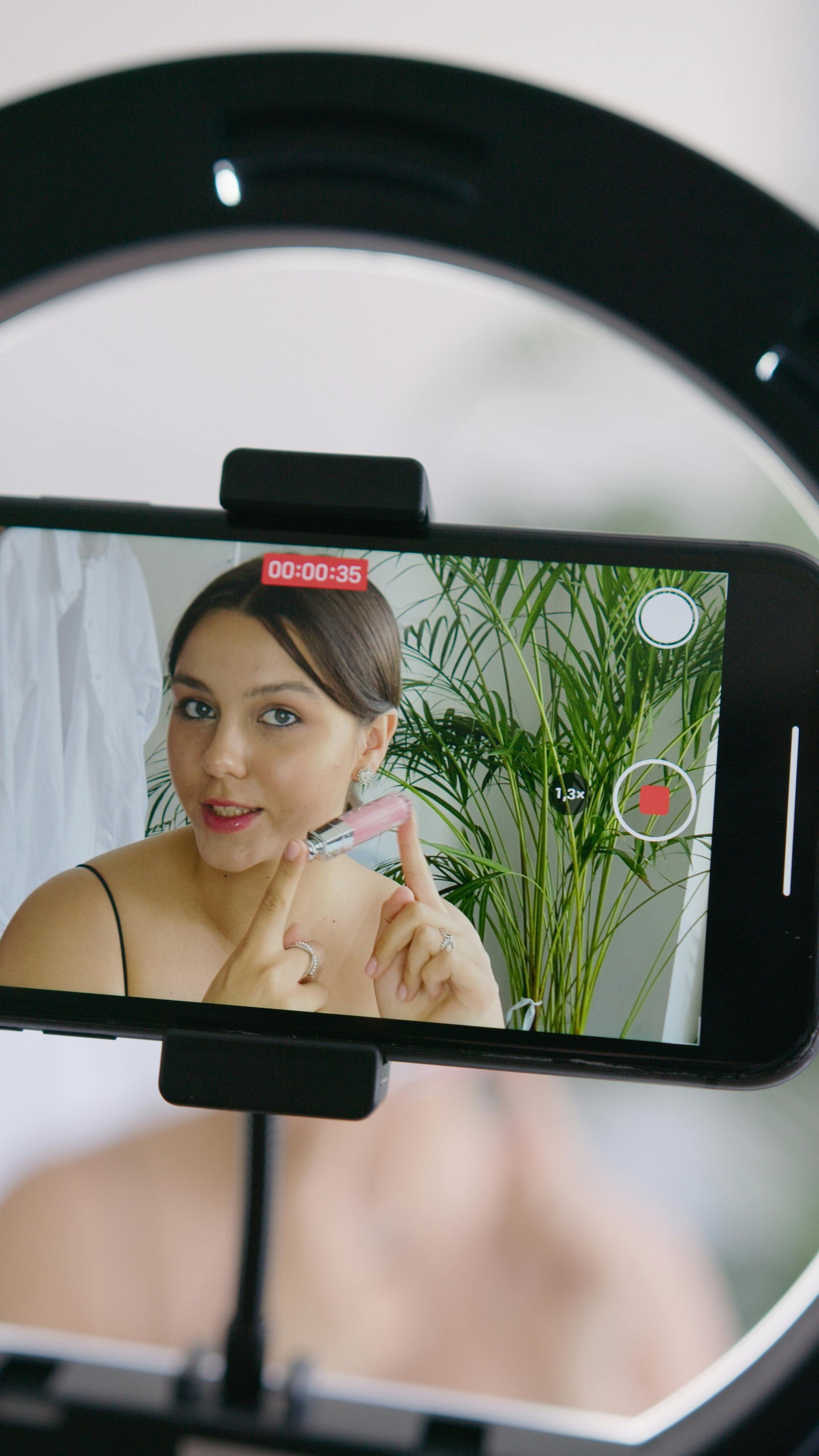
If you have ever recorded a video in landscape mode and then realized you need it in portrait for TikTok or Instagram Stories, you already know how frustrating the reformatting process can be. Most professional video editing software is either expensive, complicated to learn, or both, and it is overkill when all you need to do is adjust the frame. Free browser-based video cropping tools have changed that equation entirely, making it possible to upload a video, set your dimensions, and download a finished file in just a few minutes, with no software installation and no editing experience required.
Why Video Cropping Matters More Than Ever
Every major platform has its own preferred video format, and posting the wrong aspect ratio can mean your content gets cut off, surrounded by awkward black bars, or simply looks unprofessional. A horizontal video that works beautifully on YouTube becomes nearly unusable on TikTok or Instagram Reels without cropping it to a vertical format first. Marketers, small business owners, students, and everyday content creators all face this same challenge constantly.
The good news is that cropping a video does not require any technical skill when you use the right tool. You do not need to understand codecs, bitrates, or rendering pipelines. You just need a tool that lets you choose a size, adjust the frame, and download the result. That is exactly what the best free online video croppers are designed to do, and understanding how to use them well makes a real difference in the quality and consistency of your content across platforms.
Understanding Preset Sizes vs. Custom Dimensions
When you open a free online video cropping tool, you will typically encounter two main options for setting your output size: preset aspect ratios and custom or freeform dimensions. Knowing when to use each one saves time and produces better results.
Preset sizes are pre-configured aspect ratios matched to specific platforms or use cases. Common examples include 16:9 for landscape video (YouTube, desktop presentations), 9:16 for vertical video (TikTok, Instagram Reels, YouTube Shorts), 1:1 for square video (Instagram feed, LinkedIn), and 4:5 for portrait format (Instagram feed optimized). These presets remove the guesswork about what dimensions a particular platform requires, which is especially helpful if you are new to video content or working quickly.
Custom dimensions give you direct control over the exact pixel size or a freeform crop area. This is useful when you are cropping for a specific use case that does not match a standard platform format, such as an embedded video on a website with fixed dimensions, a digital billboard, an internal company presentation, or a video that needs to match an unusual display format. Most quality free tools support both approaches within the same interface, so you can switch between them without starting over.
What to Look for in a Free Online Video Cropper
Not every free tool handles video cropping with the same level of capability or ease. Before committing to a platform, look for these key features:
- Preset aspect ratio options. The tool should include common social media formats at minimum, covering square, landscape, and portrait orientations.
- Freeform or custom dimension input. You should be able to enter specific pixel dimensions or drag crop handles freely when a preset does not match your needs.
- Drag-to-reposition the frame. After selecting a crop size, you need to be able to move the visible area to choose exactly which part of the video stays in frame.
- No software download required. The best tools run entirely in your browser so you can use them from any device without installing anything.
- Mobile compatibility. If you shoot on your phone, you should be able to crop on your phone. Look for tools that work on both iOS and Android browsers.
- Reasonable file size limits. Some free tools cap uploads at very small file sizes. Look for tools that accept at least several hundred megabytes, ideally up to 1GB, to handle longer or higher-quality clips.
- Download without a watermark. Some free tools add a watermark to exported video unless you pay. Check this before investing time in an edit.
- Optional additional editing. Trimming, muting audio, and basic adjustments within the same tool save you from having to run your video through multiple platforms to finish it.
8 Tips for Cropping Videos Online Quickly and Easily
1. Know your target platform before you upload.
The single most common mistake people make when cropping video is not knowing the required format before they start editing. Different platforms have different expectations, and cropping to the wrong dimensions means doing it again. Before uploading your video, decide where it will be posted. TikTok, Instagram Reels, and YouTube Shorts all use 9:16 vertical. Standard YouTube uses 16:9 horizontal. Instagram feed posts work best at 1:1 square or 4:5 portrait. Having this information before you open the tool means you can select the right preset immediately and be done in minutes.
2. Use preset sizes whenever possible to save time.
Unless you have a specific use case that requires unusual dimensions, always start with a platform preset rather than entering custom numbers. Presets are faster to apply, already optimized for the target platform, and eliminate the risk of entering slightly incorrect dimensions that result in a suboptimal output. Custom dimensions are genuinely useful, but they are best reserved for situations where no existing preset fits your needs.
3. Reposition the crop frame carefully before confirming.
Selecting a crop ratio is only half the job. After you set the dimensions, most tools will default to centering the crop area on your video, which may or may not include the most important visual content. Always drag the crop window to make sure the subject of your video, whether that is a person, a product, or an action, is fully visible within the selected frame. This step takes ten seconds and makes the difference between a cropped video that looks intentional and one that looks like something was accidentally cut off.
4. Use the freeform option for web embeds and custom placements.
If you are cropping a video for a website, a digital display, or any placement with specific pixel requirements, the freeform or custom dimension option is your best choice. Enter the exact width and height your destination requires and then adjust the frame to capture the right portion of the video. This is especially useful for video backgrounds on websites, where the display area often does not match any standard social media format.
5. Follow a simple step-by-step process using a dedicated video tool.
For anyone new to online video cropping, using a tool with a clearly structured workflow removes most of the confusion. The Adobe Express tool to crop video walks through this efficiently: upload your video file (up to 1GB and up to one hour long), choose from preset aspect ratios including square, landscape, and portrait, or select freeform for custom dimensions, then use the crop handles to adjust exactly what stays in frame. From there, you can also trim the video length using exact start and end time fields, and optionally mute the audio if needed. Once you are satisfied, download the finished file instantly or continue editing within the full Adobe Express editor. The entire process from upload to download requires no account for basic use, no software installation, and no prior video editing experience.
6. Trim your video at the same time as you crop it.
Many free cropping tools also include a trimming feature that lets you shorten the video’s length at the same time as you adjust its dimensions. If your video has a long lead-in, dead air at the end, or sections you do not need, trim those out during the same editing session rather than running the file through a separate tool afterward. Handling both steps together saves time and reduces the number of times your video goes through a compression and export process, which helps preserve quality.
7. Mute the audio when original sound is not needed.
If you are cropping a video to use as a background clip, a looping visual element, or silent social media content, mute the audio before you export. Many free tools include a one-click mute option that strips the audio track from your cropped clip. This produces a cleaner file for situations where audio is irrelevant or where you plan to add music or voiceover separately in another step of your workflow.
8. Check the output quality before distributing your video.
After downloading your cropped video, play it back before posting or sharing it. Confirm that the crop frame is positioned correctly, that the trimming points are accurate if you trimmed the clip, and that the visual quality looks acceptable for your intended platform. Some free tools apply compression during export that can reduce sharpness, particularly noticeable on clips with fine detail or fast motion. If quality is important for a particular use case, test a short clip first before processing a longer file.
Cropping Video for Social Media: Platform-by-Platform Guide
Social media platforms each have their own formatting requirements, and knowing them in advance makes the cropping process significantly faster. Here is a quick reference for the most common destinations:
- TikTok: 9:16 vertical, minimum 1080 x 1920 pixels recommended. This is the standard portrait format and the most common use case for vertical video cropping.
- Instagram Reels and Stories: Also 9:16 vertical. The same crop you use for TikTok will work here without any additional adjustments.
- Instagram Feed (standard post): 1:1 square is the safest option for feed posts because it displays consistently across devices. A 4:5 portrait ratio also works and takes up more screen real estate in the feed, which can improve engagement.
- YouTube standard: 16:9 landscape. This is the native format for most desktop video recording and smartphone landscape recording, so horizontal clips often need little or no cropping for YouTube.
- YouTube Shorts: 9:16 vertical, the same as TikTok and Instagram Reels.
- LinkedIn: 1:1 square or 16:9 landscape both work well. Vertical video is supported but displays with sidebars on desktop.
- Facebook: Flexible, but 1:1 and 16:9 are both widely used. Stories use 9:16 vertical.
When you know the platform in advance, selecting a preset in your cropping tool is a one-click decision. You can then focus all of your attention on adjusting the crop frame to capture the right content rather than figuring out dimensions.
Handling Longer Videos and Larger Files
Free online tools often have file size or duration limits that affect longer videos or higher-resolution footage. If you are working with a long video, a 4K recording, or a large file exported from a camera or screen recording tool, here are a few practical approaches to managing those constraints:
First, check the file size limit of your chosen tool before uploading. Most free browser-based croppers support files up to a few hundred megabytes, and some, like Adobe Express, accept files up to 1GB and up to one hour in length. If your file exceeds the limit, consider compressing it slightly before uploading, or trimming the video to only the segment you need before running it through the cropper.
Second, if you need to crop a very long video and only plan to use a short section of it, trim to the relevant segment first and then crop. Processing a shorter clip is faster, produces a smaller output file, and puts less strain on a browser-based tool. Most good free croppers include both trimming and cropping in the same session, so you can do both in a single workflow without downloading an intermediate file.
Frequently Asked Questions
Will cropping a video reduce its quality?
Cropping a video does not inherently reduce its quality, but the export process used by some tools applies compression that can reduce sharpness compared to the original file. The extent of this depends on the tool and the output settings it uses. In general, browser-based tools that process video entirely in the cloud and download the result as a standard MP4 file produce output that is acceptable for social media and digital sharing. If you are working on a project where quality is especially important, such as a professional presentation or a video ad, test the tool with a short sample clip before processing your full video to confirm the output meets your standards.
Can I crop a video on my phone without downloading an app?
Yes, most modern browser-based video cropping tools are designed to work on mobile browsers, including Safari on iPhone and Chrome on Android devices. You can upload a video from your phone’s camera roll, apply your crop settings, and download the result directly to your device without installing any app. This is particularly useful when you shoot a video and immediately need to reformat it for a social media post before uploading. For managing and organizing the video content you create for different platforms, a scheduling and content management tool like Buffer can help you plan and distribute your cropped videos across multiple channels from one place.
What is the difference between cropping and resizing a video?
These two terms are often confused but describe different operations. Cropping removes portions of the video frame, changing what is visible but not necessarily the resolution of the remaining image. You are essentially cutting away the edges of the frame to change the aspect ratio or focus on a specific area of the original video. Resizing, on the other hand, scales the entire video up or down to different pixel dimensions without removing any portion of the frame. In practice, you often need to do both: crop to change the aspect ratio and then resize to meet a platform’s specific resolution requirements. Many online tools handle both steps automatically when you select a platform preset.
Is it safe to upload my videos to a free online cropping tool?
Reputable browser-based tools from established companies process your video temporarily during the editing session and do not retain your footage after download. That said, it is always worth reviewing a tool’s privacy policy, particularly if you are working with sensitive content such as proprietary business footage, client videos, or anything containing personal information. For personal content or general social media clips, widely used tools from established platforms are generally safe for everyday use. If privacy is a significant concern for your specific content, look for tools that explicitly state they do not store uploaded files after processing.
Do free video cropping tools work with all video file formats?
Most free browser-based tools support the most common video formats, including MP4, MOV, and AVI. MP4 is the most universally accepted format and typically produces the smoothest experience across online tools. If you have a video in a less common format, such as MKV, WEBM, or a proprietary camera format, you may need to convert it to MP4 first before uploading. There are free file conversion tools available online that handle this quickly, and once you have an MP4 version of your file, virtually any free cropping tool will accept it without issues.
Conclusion
Cropping a video used to mean opening complex software, watching tutorials, and spending far more time on a simple task than it deserved. Free browser-based video cropping tools have removed all of that friction, making it possible for anyone to reformat a video for any platform in just a few minutes, using nothing more than an internet connection and the device they already have. Whether you need a quick aspect ratio change for a social media post or a custom crop for a specific display context, the right tool makes the process feel effortless.
The tips in this article give you a practical foundation for approaching video cropping with confidence: know your target format before you start, use presets whenever possible, reposition the frame carefully, and handle trimming and muting in the same session to save time. Once you establish that workflow, reformatting video for different platforms becomes one of the fastest tasks in your content creation process rather than one of the most frustrating ones.



Leave a Reply