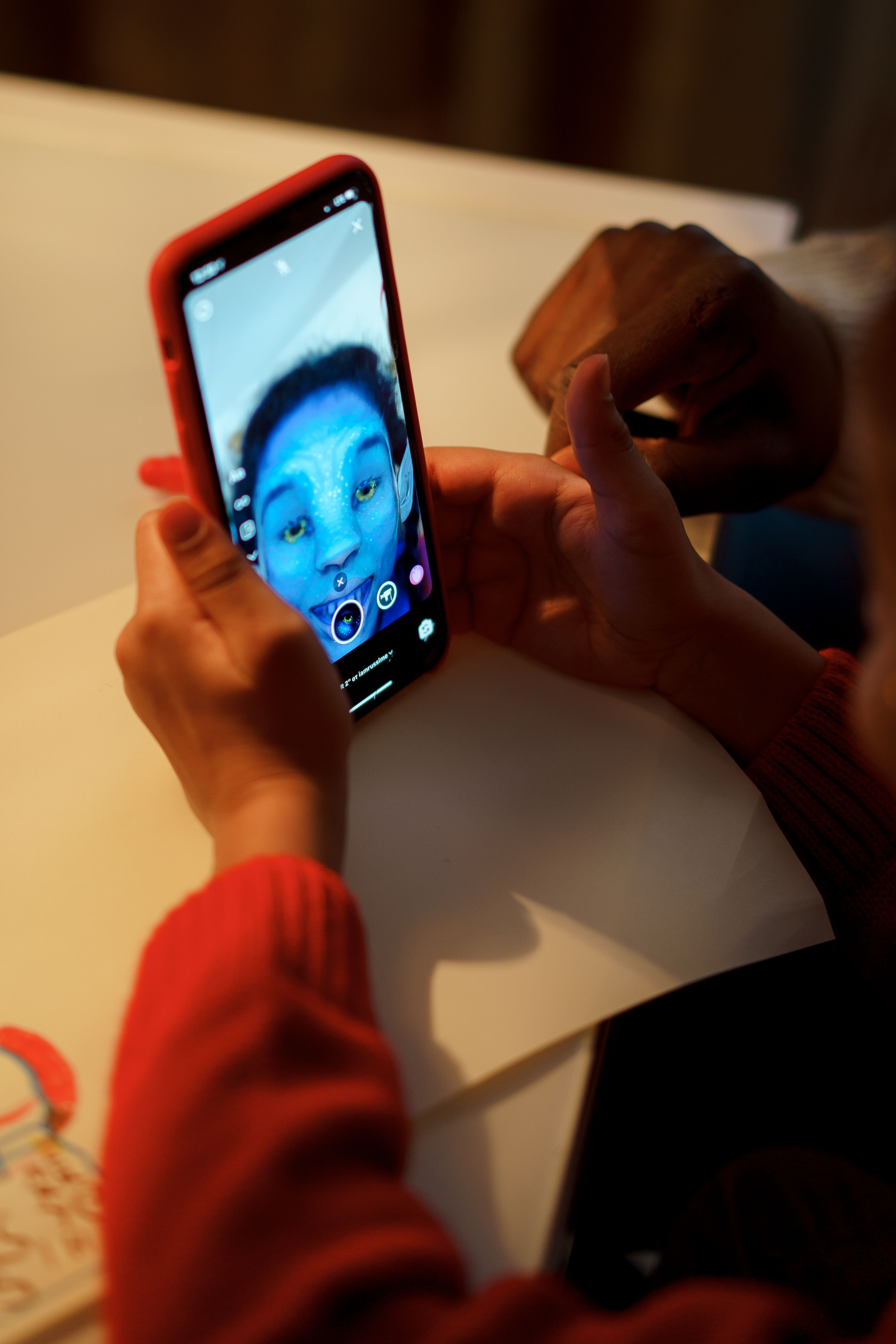
National Ugly Christmas Sweater Day lands on December 18 this year, and across Western New York the office parties, bar crawls and family photo nights are already on the calendar. LiveSwapFace, a live swap face tool that runs in the browser, lets you see that blinking reindeer sweater on yourself, live on your own camera, before you order it.
The same tool can also swap your face with a reference photo or restyle the whole video in real time. This guide walks through what LiveSwapFace does, how to start a session in three steps, and a few ways to use it during the holiday season.
What Is LiveSwapFace?
LiveSwapFace is a real-time AI video tool. You turn on your camera, pick a reference, and the AI changes your face, your outfit or the look of the whole picture while following your expressions, gaze and head movements.
Everything happens in a web browser on a computer or phone. There is no app to install, no graphics card needed and no video to upload first, because the AI processing runs in the cloud and one reference photo is enough.
Why Holiday Outfits Are Hard to Pick Online
Ugly sweater parties are a fairly young tradition, often traced to a party in Vancouver in 2002, but the shopping problem is an old one:
- Product photos show the sweater flat on a white background or on a model in studio light.
- A three-dimensional Rudolph nose or a light-up snowman looks very different on a real chest than in a thumbnail.
- Matching family or office sweaters mean several people have to agree on one design.
- Exchanges take time, and the party date does not move.
Seeing the sweater on yourself, moving as you move, takes most of the guessing out of it.
Three Modes in One Browser Tab
Try-On
Try-On puts a chosen outfit on you in the live AI video and follows your pose as you turn, wave or lean in for a group shot. You can pick from the built-in gallery of looks, which includes everyday wear, suits, athleisure and costume-style outfits, or upload a photo of the exact sweater you are considering.
The Try-On page accepts JPEG, PNG and WebP images up to 5 MB, and a clear product shot of the complete garment, flat or worn by a model on a plain background, works best. That is the kind of photo most online stores already use.
Face Swap
Face Swap replaces your face with the one in a reference photo, chosen from the reference library or uploaded yourself. It needs no training and no video upload. At an office party, one laptop becomes a photo booth where coworkers turn into elves, nutcrackers or a snowman for a few seconds of video.
Restyle
Restyle changes the style of the entire picture. You can see yourself as a hand-drawn holiday card, an animated character or a scene from a vintage Christmas special, all live.
How to Start a Live Session in Three Steps
Step 1: Choose a Reference
Pick a look or a face from the gallery, or upload your own photo. For Face Swap, a clear, front-facing photo with even lighting gives the best result. For Try-On, use a full photo of the outfit.
Step 2: Turn On Your Camera
Allow camera access and frame yourself. Keep your whole head in view for Face Swap, and your upper body or full body for Try-On.
Step 3: Press Start
The AI video appears as soon as the session connects. You can take screenshots along the way and stop whenever you like.
Tips for Better Results
- Face a window or a lamp rather than sitting with the light behind you.
- Leave a little room around your shoulders so the whole sweater fits in the frame.
- Use the Basic model to compare several options, then switch to Pro for the final pick.
- Take a screenshot of each candidate and drop them in the group chat for a vote.
Holiday Ideas
- Ugly sweater shopping. Try the reindeer, the snowman and the tinsel cardigan back to back in one sitting.
- Matching family sweaters. Pass a phone around after dinner so everyone tries the same design.
- Office party photo booth. Set up a laptop with Face Swap and a few festive reference photos.
- Holiday video greetings. Record a short message in Restyle mode as a hand-drawn card.
- Costume planning. Try a nutcracker or Christmas pageant outfit before buying fabric or a costume.
Pricing and Credits
New accounts get 100 free credits. The Basic model uses 1 credit per second, and the Pro model uses 6 credits per second for Face Swap and Try-On and 3 credits per second for Restyle, with more detail in the output. The camera preview is free, and credits are counted only while the AI video is on screen. A Try-On session can run for up to 20 minutes.
Privacy
LiveSwapFace processes the video in the cloud in real time. The company says it does not record your camera, does not store face images and keeps no gallery of what you create.
FAQ
Do I need to download an app to use LiveSwapFace?
No. It runs in a web browser on a computer or phone, with no graphics card needed.
Can I try on a sweater from an online store?
Yes. Save the product image from the store and upload it in Try-On. JPEG, PNG and WebP files up to 5 MB are accepted.
How many free credits do new users get?
New accounts start with 100 free credits, which covers 100 seconds of video on the Basic model.
What is the difference between Basic and Pro?
Basic uses 1 credit per second and is good for quick comparisons. Pro uses more credits per second and shows finer detail.
Conclusion
LiveSwapFace puts Try-On, Face Swap and Restyle in one browser tab, with no install and no video to upload. For ugly sweater season, that means trying the loudest knit in the shop on your own camera, settling the family vote with screenshots and turning the office party laptop into a photo booth. Pick a sweater, step back from the camera and press Start.


Leave a Reply